
Step-by-step guide
How to Convert a PowerPoint (PPT) to SCORM
By ScormMaker · Published and updated
To convert a PPT to SCORM, save your presentation as .pptx, open it in a free browser-based converter such as ScormMaker, preview the slides, and download the SCORM 1.2 ZIP. Then upload the ZIP to your LMS (Moodle, Canvas, Blackboard) as a SCORM package. No software install or account is needed.
What you need before you start
- A PowerPoint .pptx file. For an old .ppt, open PowerPoint and save a .pptx copy first.
- A browser on a Mac or Windows computer; no software installation or ScormMaker account is needed.
- Access to a course in an LMS that accepts SCORM 1.2, with permission to import packages.
Check LMS support before starting: Moodle accepts SCORM 1.2, while Canvas and Blackboard require the relevant SCORM features to be enabled by your institution. Creating a test course first gives you somewhere to verify the learner experience before assigning the training.
Step 1: Prepare your PowerPoint
Save your presentation as .pptx. PowerPoint animations and transitions are not kept, so make sure essential information is readable without an animation sequence.
Embedded MP4 (H.264) video and common audio formats (MP3, WAV, M4A and OGG) are kept and play with controls. WebM video usually works too, depending on browser support.
AVI, MOV and WMV usually won't play in a browser. Convert these videos to MP4 (H.264), embed them in PowerPoint, and save the presentation again before converting. ScormMaker does not re-encode your media.
Video links to files on your computer are unsupported: a learner cannot access your local drive. Web-linked video depends on the learner's network access. Very large presentations depend on device memory and may fail to convert; remove unused media or split a long deck into separate courses if needed.
Step 2: Convert the PPT to SCORM in your browser
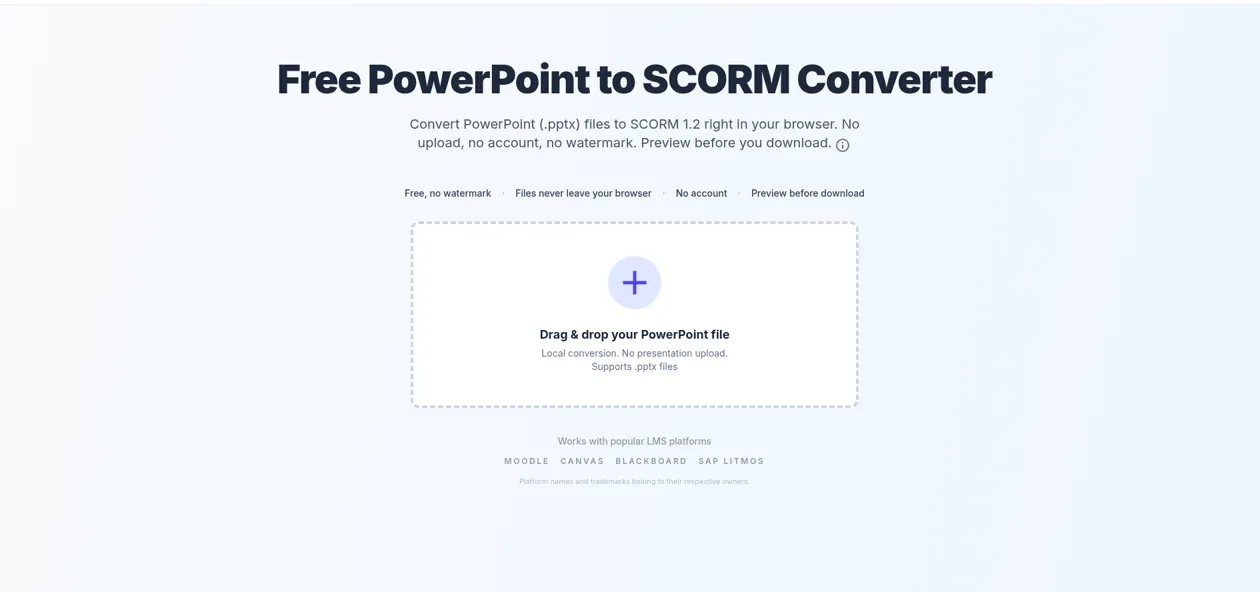
Open ScormMaker, choose your .pptx file from the homepage file picker, and wait for the presentation to load. You do not need to create an account or install an add-in.
Start with the PowerPoint to SCORM converter. Keep the browser tab open while it processes your slides. Conversion time depends on the file, slide complexity and your device, so a media-heavy presentation can take longer than a short text-based deck.
Conversion runs locally in your browser, where the SCORM package is generated. Your presentation stays in your browser and is not uploaded.
Step 3: Preview the slides
Before downloading, move through the preview and check the text, images and layout on each slide. Play embedded video and audio to confirm they work in your browser.
ScormMaker preserves common slide content such as text, images, and basic layouts. Some advanced PowerPoint features may be simplified or unsupported. Review the browser preview before importing the package into your LMS.
Pay particular attention to unusual fonts, crowded diagrams and slides that originally revealed information through animations. If something needs changing, edit the original PowerPoint, save it, and select the updated file again. Audio autoplay may be blocked by the browser; also test the play controls.
Step 4: Download the SCORM 1.2 package
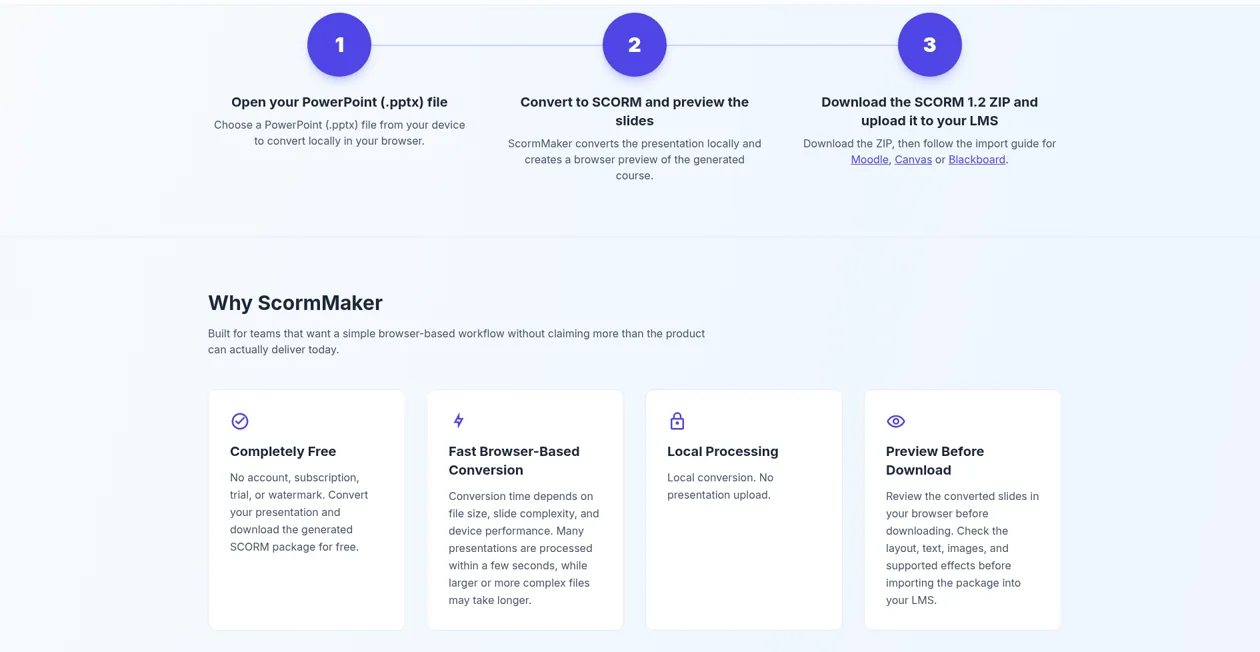
Use the download option to save the SCORM 1.2 ZIP. Keep it zipped: your LMS needs the complete ZIP package, not an extracted folder or the original PowerPoint file.
The ZIP contains the presentation, browser player and SCORM manifest needed to launch the course. If your computer automatically extracts downloads, locate the original .zip file before importing. Keep your editable .pptx separately so you can revise the material and create a new package later.
Step 5: Upload it to your LMS
Open a test course in your LMS and import the ZIP using its SCORM option. A regular file attachment will not provide SCORM completion tracking. Check with your administrator if SCORM is unavailable.
Moodle
Turn editing on, add a SCORM package activity, and upload the ZIP. Review the activity's attempt and completion settings before saving. Follow the Moodle SCORM upload guide for the import steps.
Canvas
Your institution must enable SCORM first. Use SCORM in Course Navigation to import the ZIP, then add the resulting item to your module as appropriate. See the Canvas SCORM guide for availability and setup details. For the platform's import instructions, follow the official Canvas SCORM assignment import guide.
Blackboard
Check that the SCORM Engine is enabled. In supported Ultra courses, create a SCORM package item from Course Content, upload the ZIP, and review attempt settings. Use the Blackboard SCORM guide for the full workflow.
Step 6: Test completion tracking before you assign it
Launch the imported course with a test learner account. Progress is the current slide divided by the total slides. Reaching the last slide reports completed to the LMS; otherwise it reports incomplete. The resume position is saved so the next open returns to the last slide you were on.
For a deck with more than one slide, first close it partway through and check the LMS for incomplete. Reopen it to check the saved position, then navigate to the last slide and confirm completed is reported at 100%. Check the LMS learner report, since an instructor preview alone does not verify saved learner status.
The generated package currently saves basic progress and completion status in compatible SCORM 1.2 LMS environments. It does not include quizzes, interaction data, scores, or advanced analytics.
Playback, import behavior, and tracking can vary by LMS version, configuration, and administrator settings. Test the package in a staging course before publishing it to learners.
PowerPoint to SCORM: what is and isn't kept
| Content or capability | In the SCORM package |
|---|---|
| Text and images | Kept for common slide content; review layout and fonts. |
| Embedded video and audio | MP4 (H.264) video; MP3, WAV, M4A and OGG audio kept. |
| Animations and transitions | Not kept. |
| Quizzes and scores | Not included. |
| Progress and completion tracking | Included; reaching the last slide reports completed. |
| SCORM version | SCORM 1.2 only. |
When should you use an authoring tool instead?
Choose a full authoring tool such as iSpring or Articulate when you need quizzes and scoring, synchronized narration, branching scenarios, animation support, or SCORM 2004 required by your LMS. Check the specific tool's publishing options and supported PowerPoint effects before committing to it.
If your goal is to put an existing slide deck into an LMS and record basic progress and completion, a free converter can cover that workflow. Converting PowerPoint to SCORM does not automatically turn the slides into an assessed or interactive course; decide what evidence of learning your training needs.
What is a SCORM wrapper for PowerPoint?
A SCORM wrapper for PowerPoint packages the presentation with a player and the files that let an LMS launch it and receive progress and completion status. ScormMaker puts these together in a SCORM 1.2 ZIP. The wrapper supplies the LMS connection; it does not add quizzes or preserve unsupported PowerPoint effects.
For background on how SCORM packages communicate with an LMS, read Rustici Software's SCORM explained overview.
FAQ
Can I convert PPT to SCORM for free?
Yes. This workflow lets you prepare a .pptx, check its preview and download a SCORM 1.2 ZIP without paying for a conversion license. ScormMaker is free for personal and commercial use, with no account required. Your LMS may have its own subscription or hosting costs.
Does it work on a Mac?
Yes. Conversion runs in your browser on a Mac or Windows computer; it does not require a Windows PowerPoint add-in. Have the presentation saved as .pptx before selecting it, and check media playback in both the preview and your LMS.
Can I convert an old .ppt file?
First open the .ppt in PowerPoint and use Save As to create a .pptx copy. Select that copy in ScormMaker. Renaming the filename extension from .ppt to .pptx does not convert the file format; review the newly saved deck before proceeding.
Why won't my SCORM package upload to my LMS?
Check that you selected the original ZIP rather than an extracted folder, and that the destination is a SCORM activity or import tool rather than a normal file upload. Confirm SCORM is enabled and SCORM 1.2 is accepted. If it still fails, check the LMS upload-size setting and share the exact import error with your administrator.
Is SCORM 1.2 enough, or do I need SCORM 2004?
For a slide course that needs basic progress, completion status and a saved resume position, SCORM 1.2 may be enough if your LMS supports it. If your training specification requires SCORM 2004, sequencing, or separate success and completion statuses, choose an authoring tool that supports those requirements. ScormMaker exports SCORM 1.2 only.